Monday, March 15, 2021

How to Cache, Fetch Files & Remove Old Caches on Service Worker Example


How to cache, fetch files & remove old cache on service worker?

Let's follow the code below :

index.html

<!--
	Cache & Fetch Files on Service Worker Example
	-----------------------------------

	Step 1 : Create file index.html & sw.js
	Step 2 : Put the file you want to cache
	Step 3 : You need to run this app at http://{host}
	Step 4 : Done

	-----------------------------------

	Reference :
		- https://developers.google.com/web/fundamentals/primers/service-workers
		- https://stackoverflow.com/a/33705250/9278668
		- https://stackoverflow.com/q/46865552/9278668
		- https://kotakode.com/pertanyaan/1556/mengatasi-uncaught-(in-promise)-typeerror%3A-request-failed-pada-web-pwa
-->
<html>
<head>
	<title>Cache & Fetch Files on Service Worker Example</title>
</head>
<body>
	<h1>Cache & Fetch Files on Service Worker Example</h1>

	<button onclick="installServiceWorker()">Install & Init Cache on Service Worker</button>
	<button onclick="uninstallServiceWorker()">Uninstall Service Worker</button>
	<button onclick="inspectServiceWorker()">Inspect Service Worker</button>

	<br /><br />

	Open : <a href="chrome://inspect/#service-workers">chrome://inspect/#service-workers</a> for <b>inspect</b> <i>service worker</i> in google chrome

	<br /><br />

	<img src="sw-lifecycle.png"> <br /> 
	<img src="sw-cache-lifecycle.jpg" width="500"> <br /> 
	<img src="img/service-worker.png"> <br /> 
</body>
</html>

<script type="text/javascript">
function installServiceWorker() {
	if('serviceWorker' in navigator) {
		navigator.serviceWorker.register('./sw.js').then(function(registration) {
			console.log('[BROWSER] - Service worker registration successful with scope : ' + registration.scope);
		}, function(err) {
			console.error('[BROWSER] - Service worker registration failed :', err);
		});
	}
}
function uninstallServiceWorker() {
	if('serviceWorker' in navigator) {
		navigator.serviceWorker.getRegistrations().then(function(registrations) {
			for(let registration of registrations) {
				console.log('[BROWSER] - Uninstalled service worker successful.', registration);
				registration.unregister();
			} 
		});
	}
}
function inspectServiceWorker() {
	alert('Open -> chrome://inspect/#service-workers');
	window.location = 'chrome://inspect/#service-workers';
}
</script>

sw.js

const CACHE_NAME = 'webapp-v1';
const CACHE_FILES = [
	'/sw-lifecycle.png',
	'/sw-cache-lifecycle.jpg'
];

self.addEventListener('install', event => {
	console.log('[SERVICE-WORKER] - Service worker installed successful.');
	event.waitUntil(
		caches.open(CACHE_NAME)
			.then(cache => cache.addAll(CACHE_FILES))
			.then(self.skipWaiting())
			.catch(err => console.error('[SERVICE-WORKER] - Error trying to pre-fetch cache files :', err))
	);
});

self.addEventListener("activate", (event) => {
	console.log('[SERVICE-WORKER] - Service worker activated');
	// delete if cache name is undeclared
	event.waitUntil(
		caches.keys().then((cacheFiles) => {
			return Promise.all(
				cacheFiles.map((cache) => {
					if (cache !== CACHE_NAME) {
						console.log('[SERVICE-WORKER] - Clearing old cache :', cache);
						return caches.delete(cache);
					}
				})
			);
		})
	);
});

self.addEventListener('fetch', event => {
	if (!event.request.url.startsWith(self.location.origin)) return;
	console.log('[SERVICE-WORKER] - Fetch event on :', event.request.url);
	event.respondWith(
		caches.match(event.request).then(response => {
			console.info('[SERVICE-WORKER] - Responded to ', event.request.url, 'with', response ? 'cache hit.' : 'fetch.');
			return response || fetch(event.request);
		}).catch(err => {
			console.error('[SERVICE-WORKER] - Error with match or fetch:', err);
		})
	);
});


You  need run this app on http://{host} .

For developer tools, you can inspect the service workers at chrome://inspect/#service-workers


Reference :


Thursday, August 6, 2020

Nginx Extra Security & Performance Tuning Example


Advanced configuration for Nginx

There are some small changes you can make to make your website faster, and a little more secure.

Security enhancements

The original configuration will keep you safe, but it is always good to see what else can be done.

Giving less information to attackers

By default, the nginx.conf will return "403 Forbidden" errors for system files that are not supposed to be accessed directly. However, there's a good alternative, like so:

server {
    ...

    ## Begin - Index
    # for subfolders, simply adjust:
    # `location /subfolder {`
    # and the rewrite to use `/subfolder/index.php`
    location / {
        try_files $uri $uri/ @index;
    }

    location @index {
        try_files = /index.php?_url=$uri&$query_string;
    }
    ## End - Index

    ## Begin - Security
    # set error handler for these to the @index location
    error_page 418 = @index;
    # deny all direct access for these folders
    location ~* /(\.git|cache|bin|logs|backup|tests)/.*$ { return 418; }
    # deny running scripts inside core system folders
    location ~* /(system|vendor)/.*\.(txt|xml|md|html|yaml|yml|php|pl|py|cgi|twig|sh|bat)$ { return 418; }
    # deny running scripts inside user folder
    location ~* /user/.*\.(txt|md|yaml|yml|php|pl|py|cgi|twig|sh|bat)$ { return 418; }
    # deny access to specific files in the root folder
    location ~ /(LICENSE\.txt|composer\.lock|composer\.json|nginx\.conf|web\.config|htaccess\.txt|\.htaccess) { return 418; }
    ## End - Security
    ...
}

What happens here is the following:

  • Try and see if the file exists on disk, and if not, give the request to the @index location.
  • The new @index location will reroute requests to the /index.php as usual.
  • Instead of returning a "403 Forbidden" error, we now return a 418.
  • Because we set the error_page 418, any 418 will be handled by the @index location.
  • Grav's /index.php will pick up the route it is given, determine if there's a matching route,
    and if not, simply return a 404 by itself.

Normally, we route all non-existing files to Grav. However, returning any status code from nginx itself, will give a different kind of error than if it had been routed through Grav. That gives the attacker the information that those files are special and actually exist. More than that, that you explicitly don't want them to try and read those. They will try harder.

This is better, because if you reroute it to Grav, Grav will handle it like any other non-existing file.

No direct access to other .php-files

In the example nginx.conf, all requests to files ending in .php are sent to the PHP-handler. This is not necessary, as Grav only uses the /index.php to route requests. Every other location is handled internally.

Some vulnerabilities in CMS's are targeted specifically at plug-ins, themes or other third-party libraries. There is no reason to keep direct access to them open (unless you run Grav combined with other pieces of software in the same webroot!).

So, alternatively, only route /index.php to the PHP-handler, and block the rest! Like so:

server {
    ...
    ## Begin - PHP
    location = /index.php {
        # Choose either a socket or TCP/IP address
        fastcgi_pass unix:/var/run/php7.0-fpm.sock;
        # fastcgi_pass 127.0.0.1:9000;

        fastcgi_split_path_info ^(.+\.php)(/.+)$;
        fastcgi_index index.php;
        include fastcgi_params;
        fastcgi_param SCRIPT_FILENAME $document_root$fastcgi_script_name;
    }
    ## End - PHP

    ## Begin - Security
    ...
    # deny access to other .php-scripts
    location ~ \.php$ { return 418; }
    ...
    ## End - Security
    ...
}

With this, any .php-file that is not /index.php, will be rerouted to and be handled by /index.php.

Performance

nginx is a very capable webserver, but it is also very capable of doing advanced caching.

Do not check for the existence of directories

Many, many examples use this line:

try_files $uri $uri/ @index;

Few people actually realise that it does, which is:

  1. Check for the existence of the file.
  2. If it does not exist, try and see if there's a directory with that name.
  3. Otherwise, fall back to @index (/index.php).

But, in reality, you only really use $uri/ (step 2) if you really are linking to a directory that will have its own index.php or index.html. Considering you're using Grav, you will only go to /, and that already goes to /index.php in step 3.

If you're not going to use it, don't keep it around, and you will take out an extra filesystem stat():

try_files $uri @index;

Caching filesystem metadata of files

The open file cache caches metadata about files. If they exist or not, what file permissions they have, if they are readable or not.. This can help a little on local filesystems, especially that are not on SSD. It shines more in environments with network storage (like NFS).

Keep in mind that this goes outside of the server{}-block, directly into the http{}-context:

open_file_cache                 max=10000 inactive=5m;
open_file_cache_valid           1m;
open_file_cache_min_uses        1;
open_file_cache_errors          on;

server {
    ...
}

In this example, we told nginx to:

  • Keep a maximum of 10k entries.
  • Delete metadata of a file from the cache if they it is not used for 5 minutes.
  • Refresh the metadata it has every minute.
  • Put the metadata of a file in the cache immediately upon accessing it the first time.
  • Cache errors like "Permission denied", "Not found", as well.

Precompressing resources

In the example nginx.conf, we enable GZip-compression. While excellent, it also means that the output is compressed on a per-request basis. This in turn means that with every request, it adds extra CPU-cycles and latency (you have to wait or the compression to be done).

There is an alternative in nginx, which is gzip_staticgzip_static will make nginx look for the same file, but with a .gz extension. So if I have main.css, it will try and see if there is already a main.css.gz present, and send that instead.

To enable this, use:

server {
    ...

    ## Begin - Index
    ...

    location / {
        try_files $uri @index;

        location /assets {
            gzip_static on;
        }
    }

    ...
    ## End - Index
    ...
}

By using a nested location /assets, you will not incur extra filesystem stat()s for the rest of Grav.
If enabled, the /assets location will contain pipelined/minified assets.

!! nginx does not automatically compress the files for you. You will have to do this yourself.

To compress the files (on UNIX-based systems), you can do the following:

cd assets
for asset in *.css *.js; do gzip -kN9 "$asset"; done

Note that these are automatically deleted when you clear your (asset) cache, and you will have to redo it after new resource files are created. There is an outstanding Pull Request to allow automatic precompression of assets upon creation of these files.

Enable FastCGI caching.

** DO NOT USE THIS KIND OF CACHING IF YOU HAVE DYNAMIC PAGE CONTENT **

The following example is safe to use with authentication, and the Admin interface. It is also safe for dynamic page content, but your dynamic content will not be dynamic anymore (as it is aggressively statically cached).

nginx has caching for FastCGI. In the example below, we will leverage this. Note that if anything on the site sets a cookie or similar dynamic content headers, the cache is invalid and will not be used at all.

First, we are going to need to make a map{} in the main http{}-context (so outside/before the server{}-block) to convert our optional session cookie into a unique identifier for the cache (so users with different sessions do not share the same cached resource, all of them will have a unique copy, but cached for their own session):

# This is to have caching enabled when site sessions are turned on.
# It makes FastCGI caching safe to use with authenticated content.
map $http_cookie $sessionkey {
    default '';
    ~grav-site-(?<hash>[0-9a-f]+)=(?<sessionid>[^\;]+) $hash$sessionid;
}

server {
    ...
}

If you renamed your site session name (setting session.name) in your Grav config, update its name in the example above! The regular expression will combine the unique identifier in the cookie name with the session id in the cookie into a new variable $sessionkey, which we can later use in the fastcgi_cache_key setting. Next, define a cache zone in the same context right under it:

fastcgi_cache_path      /path/to/cache/on/disk          levels=1:2
                        keys_zone=fastcgi:10m           max_size=200m
                        inactive=60m                    use_temp_path=off;

You should change the path of where the cache is stored on disk, but what it does is:

  1. Set the path. You can use this to cache on disks that might be faster. (Tip: Use /dev/shm/something on Linux systems to use a RAM-disk instead!).
  2. Define the directory hierarchy structure of 1 character, then 2 characters. (i.e. /path/to/cache/on/disk/c/29/...)
  3. Give the cache zone a name ("fastcgi" here) and an initial size (10 MB).
  4. Allow a maximum of 200 MB to be cached.
  5. Delete a resource from the cache if it hasn't been used for 60 minutes.
  6. Do not base the cache path off of fastcgi_temp_path.

Next, you can use this cache zone in your configuration:

server {
    ...
    ## Begin - PHP
    location = /index.php {
        ## Begin - FastCGI caching
        fastcgi_cache           fastcgi;
        fastcgi_cache_key       "$scheme$request_method$host$request_uri$sessionkey";
        fastcgi_cache_valid     200 30m;
        fastcgi_cache_valid     404 5m;
        fastcgi_cache_valid     any 1m;
        fastcgi_ignore_headers  "Cache-Control"
                                "Expires"
                                "Set-Cookie";

        fastcgi_cache_use_stale error
                                timeout
                                updating
                                http_429
                                http_500
                                http_503;

        fastcgi_cache_background_update on;
        ## End - FastCGI caching

        # Choose either a socket or TCP/IP address
        fastcgi_pass unix:/var/run/php7.0-fpm.sock;
        # fastcgi_pass 127.0.0.1:9000;

        fastcgi_split_path_info ^(.+\.php)(/.+)$;
        fastcgi_index index.php;
        include fastcgi_params;
        fastcgi_param SCRIPT_FILENAME $document_root$fastcgi_script_name;
    }
    ## End - PHP
}

Now, what is happening here, is the following:

  • The cache zone named "fastcgi" will be used for this (we defined that earlier).
  • The cache key to lookup a cached resource is set to something like "httpsGETwww.example.com/".
  • Cache times:
    • 200 "OK"-responses: 30 minutes.
    • 404 "Not Found"-responses: 5 minutes.
    • Any other status code: 1 minute.
  • Ignore the Cache-ControlExpires and Set-Cookie headers (since we're in control here).
  • Keep serving our cache when the following happens:
    • There is an error.
    • There is a timeout.
    • nginx is busy updating the cache.
    • There is a 429 Too Many Requests on the backend (backend is too busy).
    • There is a 500 Internal Server Error on the backend (backend has a misconfiguration).
    • There is a 503 Gateway Timeout to the backend (backend has other problems).
  • And last but not least: Upgrade the cache in the background, don't make our clients wait.

Please note, once again, that this will not (and should not) work if you're using the Admin panel, or use any other sessions on your site. It is not recommended to use this caching with any authenticated content, for security reasons.

If you wish to test if your cache is working, you can add a simple header (remove on production):

add_header X-Cache "$upstream_cache_status - $scheme$request_method$host$request_uri$sessionkey";

You can view the header with cURL (or any other tool):

$ curl -I https://www.example.com/
...
X-Cache: MISS - httpsHEADexample.com/en - 7b2fdab20bb2fbi85l61eounburtlxavo
...
$ curl -I https://www.example.com/
...
X-Cache: HIT - httpsHEADexample.com/en - 7b2fdab20bb2fbi85l61eounburtlxavo
...
$

Again, you might want to disable the header after confirming it works.

If you feel the need to purge your cache entirely:

  1. Stop nginx.
  2. Remove the directory.
  3. Start ngnix.

The cache is automatically updated and pruned in the background, so you shouldn't need to do so.

More fine-grained control over (not) caching

If you use the admin interface, you might want to disable caching globally once the admin cookie has been set. Note that an admin cookie is set when you go to the /admin URL, and that anyone can go there by default. You don't need to login to disable caching.

You can use the following example as a basis. Put the map{}s outside your server{} and the fastcgi_*-directives with the rest of the caching directives:

# This is used by fastcgi_cache_bypass and fastcgi_no_cache.
# If you don't want certain URI's cached, add them here with a value of 1.
map $request_uri $no_cache1 {
        default                 0;
        ~^/(../|)admin          1;
}

# This is used by fastcgi_cache_bypass and fastcgi_no_cache.
# To disable caching based on cookie names, add them here with a value of 1.
map $http_cookie $no_cache2 {
    default 0;
    ~grav-site-([0-9a-f]+)-admin=([^\;]+) 1;
}

server {
    ...
    location = /index.php {
        ...
        fastcgi_cache_bypass $no_cache1 $no_cache2;
        fastcgi_no_cache     $no_cache1 $no_cache2;
        ...
    }
}


Tuesday, March 31, 2020

Docker Compose + Python + Flask Example


On this page you build a simple Python web application running on Docker Compose. The application uses the Flask framework and maintains a hit counter in Redis. While the sample uses Python, the concepts demonstrated here should be understandable even if you’re not familiar with it.

Prerequisites

Make sure you have already installed both Docker Engine and Docker Compose. You don’t need to install Python or Redis, as both are provided by Docker images.

Step 1: Setup

Define the application dependencies.
  1. Create a directory for the project:
    $ mkdir composetest
    $ cd composetest
    
  2. Create a file called app.py in your project directory and paste this in:
    import time
    
    import redis
    from flask import Flask
    
    app = Flask(__name__)
    cache = redis.Redis(host='redis', port=6379)
    
    
    def get_hit_count():
        retries = 5
        while True:
            try:
                return cache.incr('hits')
            except redis.exceptions.ConnectionError as exc:
                if retries == 0:
                    raise exc
                retries -= 1
                time.sleep(0.5)
    
    
    @app.route('/')
    def hello():
        count = get_hit_count()
        return 'Hello World! I have been seen {} times.\n'.format(count)
    
    In this example, redis is the hostname of the redis container on the application’s network. We use the default port for Redis, 6379.
    Handling transient errors
    Note the way the get_hit_count function is written. This basic retry loop lets us attempt our request multiple times if the redis service is not available. This is useful at startup while the application comes online, but also makes our application more resilient if the Redis service needs to be restarted anytime during the app’s lifetime. In a cluster, this also helps handling momentary connection drops between nodes.
  3. Create another file called requirements.txt in your project directory and paste this in:
    flask
    redis
    

Step 2: Create a Dockerfile

In this step, you write a Dockerfile that builds a Docker image. The image contains all the dependencies the Python application requires, including Python itself.
In your project directory, create a file named Dockerfile and paste the following:
FROM python:3.7-alpine
WORKDIR /code
ENV FLASK_APP app.py
ENV FLASK_RUN_HOST 0.0.0.0
RUN apk add --no-cache gcc musl-dev linux-headers
COPY requirements.txt requirements.txt
RUN pip install -r requirements.txt
COPY . .
CMD ["flask", "run"]
This tells Docker to:
  • Build an image starting with the Python 3.7 image.
  • Set the working directory to /code.
  • Set environment variables used by the flask command.
  • Install gcc so Python packages such as MarkupSafe and SQLAlchemy can compile speedups.
  • Copy requirements.txt and install the Python dependencies.
  • Copy the current directory . in the project to the workdir . in the image.
  • Set the default command for the container to flask run.
For more information on how to write Dockerfiles, see the Docker user guide and the Dockerfile reference.

Step 3: Define services in a Compose file

Create a file called docker-compose.yml in your project directory and paste the following:
version: '3'
services:
  web:
    build: .
    ports:
      - "5000:5000"
  redis:
    image: "redis:alpine"
This Compose file defines two services: web and redis.

Web service

The web service uses an image that’s built from the Dockerfile in the current directory. It then binds the container and the host machine to the exposed port, 5000. This example service uses the default port for the Flask web server, 5000.

Redis service

The redis service uses a public Redis image pulled from the Docker Hub registry.

Step 4: Build and run your app with Compose

  1. From your project directory, start up your application by running docker-compose up.
    $ docker-compose up
    Creating network "composetest_default" with the default driver
    Creating composetest_web_1 ...
    Creating composetest_redis_1 ...
    Creating composetest_web_1
    Creating composetest_redis_1 ... done
    Attaching to composetest_web_1, composetest_redis_1
    web_1    |  * Running on http://0.0.0.0:5000/ (Press CTRL+C to quit)
    redis_1  | 1:C 17 Aug 22:11:10.480 # oO0OoO0OoO0Oo Redis is starting oO0OoO0OoO0Oo
    redis_1  | 1:C 17 Aug 22:11:10.480 # Redis version=4.0.1, bits=64, commit=00000000, modified=0, pid=1, just started
    redis_1  | 1:C 17 Aug 22:11:10.480 # Warning: no config file specified, using the default config. In order to specify a config file use redis-server /path/to/redis.conf
    web_1    |  * Restarting with stat
    redis_1  | 1:M 17 Aug 22:11:10.483 * Running mode=standalone, port=6379.
    redis_1  | 1:M 17 Aug 22:11:10.483 # WARNING: The TCP backlog setting of 511 cannot be enforced because /proc/sys/net/core/somaxconn is set to the lower value of 128.
    web_1    |  * Debugger is active!
    redis_1  | 1:M 17 Aug 22:11:10.483 # Server initialized
    redis_1  | 1:M 17 Aug 22:11:10.483 # WARNING you have Transparent Huge Pages (THP) support enabled in your kernel. This will create latency and memory usage issues with Redis. To fix this issue run the command 'echo never > /sys/kernel/mm/transparent_hugepage/enabled' as root, and add it to your /etc/rc.local in order to retain the setting after a reboot. Redis must be restarted after THP is disabled.
    web_1    |  * Debugger PIN: 330-787-903
    redis_1  | 1:M 17 Aug 22:11:10.483 * Ready to accept connections
    
    Compose pulls a Redis image, builds an image for your code, and starts the services you defined. In this case, the code is statically copied into the image at build time.
  2. Enter http://localhost:5000/ in a browser to see the application running.
    If you’re using Docker natively on Linux, Docker Desktop for Mac, or Docker Desktop for Windows, then the web app should now be listening on port 5000 on your Docker daemon host. Point your web browser to http://localhost:5000 to find the Hello World message. If this doesn’t resolve, you can also try http://127.0.0.1:5000.
    If you’re using Docker Machine on a Mac or Windows, use docker-machine ip MACHINE_VM to get the IP address of your Docker host. Then, open http://MACHINE_VM_IP:5000 in a browser.
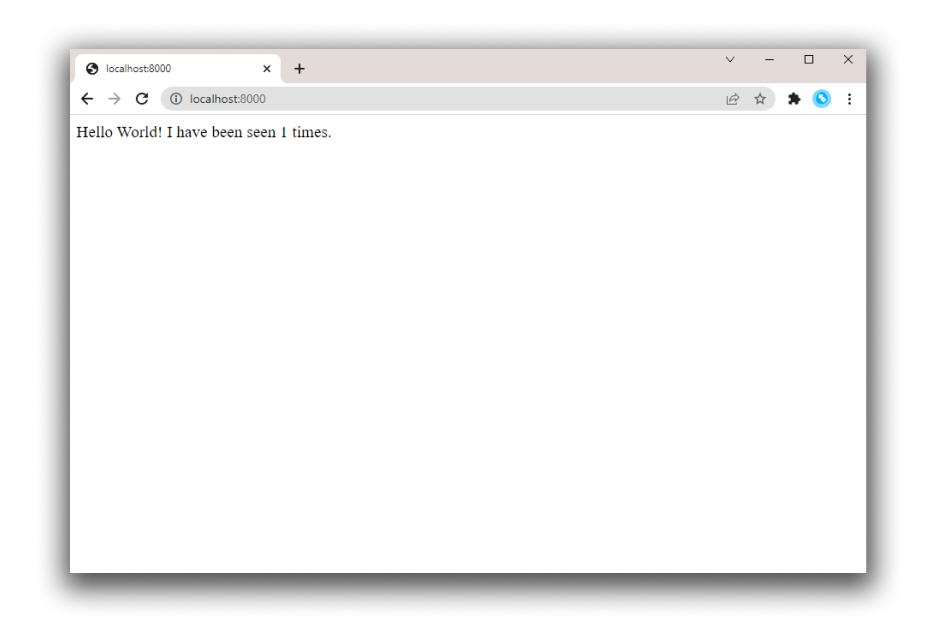
    You should see a message in your browser saying:
    Hello World! I have been seen 1 times.
    
    hello world in browser
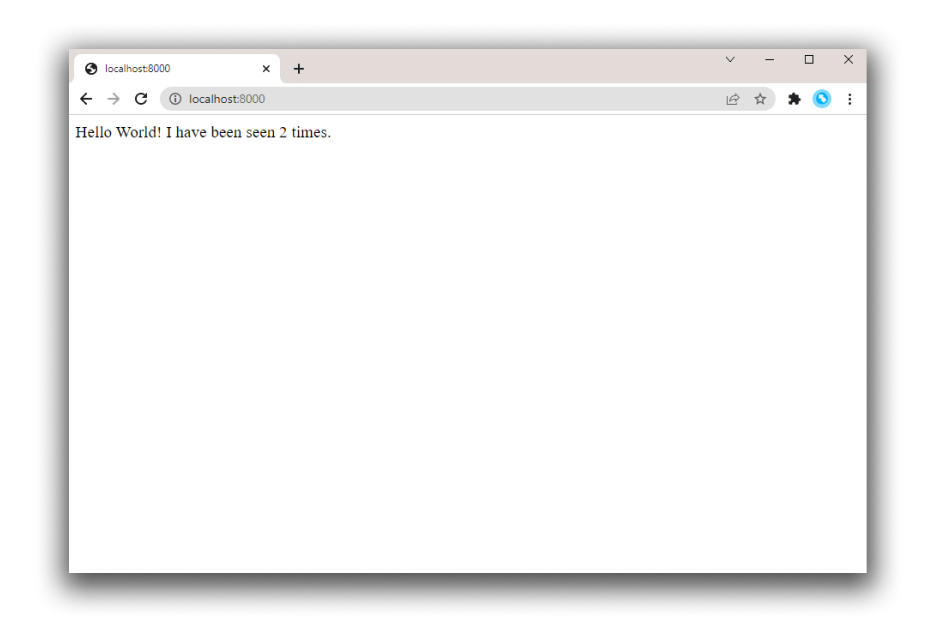
  3. Refresh the page.
    The number should increment.
    Hello World! I have been seen 2 times.
    
    hello world in browser
  4. Switch to another terminal window, and type docker image ls to list local images.
    Listing images at this point should return redis and web.
    $ docker image ls
    REPOSITORY              TAG                 IMAGE ID            CREATED             SIZE
    composetest_web         latest              e2c21aa48cc1        4 minutes ago       93.8MB
    python                  3.4-alpine          84e6077c7ab6        7 days ago          82.5MB
    redis                   alpine              9d8fa9aa0e5b        3 weeks ago         27.5MB
    
    You can inspect images with docker inspect <tag or id>.
  5. Stop the application, either by running docker-compose down from within your project directory in the second terminal, or by hitting CTRL+C in the original terminal where you started the app.

Step 5: Edit the Compose file to add a bind mount

Edit docker-compose.yml in your project directory to add a bind mount for the web service:
version: '3'
services:
  web:
    build: .
    ports:
      - "5000:5000"
    volumes:
      - .:/code
    environment:
      FLASK_ENV: development
  redis:
    image: "redis:alpine"
The new volumes key mounts the project directory (current directory) on the host to /code inside the container, allowing you to modify the code on the fly, without having to rebuild the image. The environment key sets the FLASK_ENV environment variable, which tells flask run to run in development mode and reload the code on change. This mode should only be used in development.

Step 6: Re-build and run the app with Compose

From your project directory, type docker-compose up to build the app with the updated Compose file, and run it.
$ docker-compose up
Creating network "composetest_default" with the default driver
Creating composetest_web_1 ...
Creating composetest_redis_1 ...
Creating composetest_web_1
Creating composetest_redis_1 ... done
Attaching to composetest_web_1, composetest_redis_1
web_1    |  * Running on http://0.0.0.0:5000/ (Press CTRL+C to quit)
...
Check the Hello World message in a web browser again, and refresh to see the count increment.
Shared folders, volumes, and bind mounts
  • If your project is outside of the Users directory (cd ~), then you need to share the drive or location of the Dockerfile and volume you are using. If you get runtime errors indicating an application file is not found, a volume mount is denied, or a service cannot start, try enabling file or drive sharing. Volume mounting requires shared drives for projects that live outside of C:\Users (Windows) or /Users (Mac), and is required for any project on Docker Desktop for Windows that uses Linux containers. For more information, see Shared Drives on Docker Desktop for Windows, File sharing on Docker for Mac, and the general examples on how to Manage data in containers.
  • If you are using Oracle VirtualBox on an older Windows OS, you might encounter an issue with shared folders as described in this VB trouble ticket. Newer Windows systems meet the requirements for Docker Desktop for Windows and do not need VirtualBox.

Step 7: Update the application

Because the application code is now mounted into the container using a volume, you can make changes to its code and see the changes instantly, without having to rebuild the image.
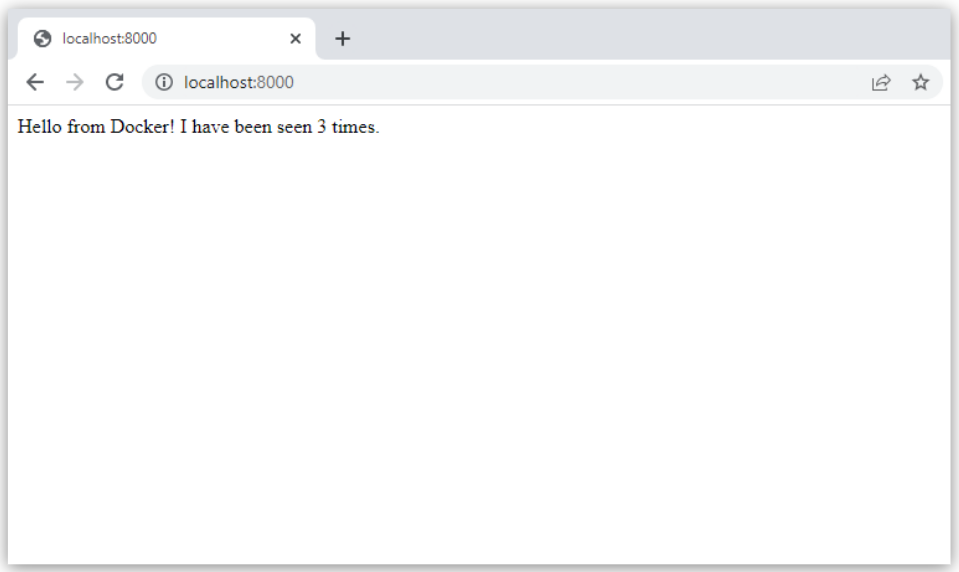
  1. Change the greeting in app.py and save it. For example, change the Hello World! message to Hello from Docker!:
    return 'Hello from Docker! I have been seen {} times.\n'.format(count)
    
  2. Refresh the app in your browser. The greeting should be updated, and the counter should still be incrementing.
    hello world in browser

Step 8: Experiment with some other commands

If you want to run your services in the background, you can pass the -d flag (for “detached” mode) to docker-compose up and use docker-compose ps to see what is currently running:
$ docker-compose up -d
Starting composetest_redis_1...
Starting composetest_web_1...

$ docker-compose ps
Name                 Command            State       Ports
-------------------------------------------------------------------
composetest_redis_1   /usr/local/bin/run         Up
composetest_web_1     /bin/sh -c python app.py   Up      5000->5000/tcp
The docker-compose run command allows you to run one-off commands for your services. For example, to see what environment variables are available to the web service:
$ docker-compose run web env
See docker-compose --help to see other available commands. You can also install command completion for the bash and zsh shell, which also shows you available commands.
If you started Compose with docker-compose up -d, stop your services once you’ve finished with them:
$ docker-compose stop
You can bring everything down, removing the containers entirely, with the down command. Pass --volumes to also remove the data volume used by the Redis container:
$ docker-compose down --volumes
At this point, you have seen the basics of how Compose works.

Where to go next

documentationdocsdockercomposeorchestrationcontainers

Reference: